
Breakdance Builder Premium Plugin is required for Pixels Library Plus and You need to buy from Breakdance Website.
For Lifetime/Yearly Members
After unzip please check "plugin" folder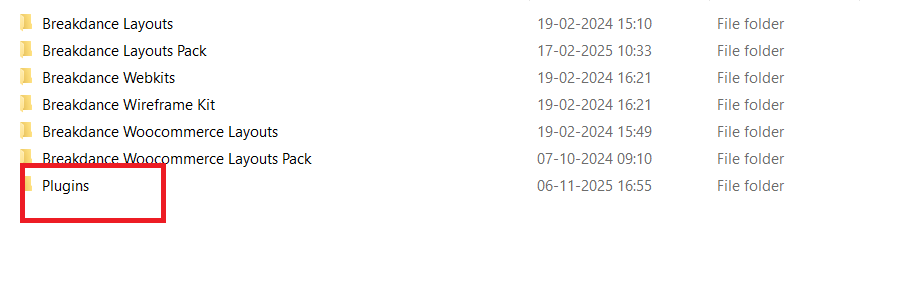
For Lifetime/Yearly/Individual Members
In Plugin Folder "Breakdance Projects Element" folder you can see and open that folder
After Open that folder
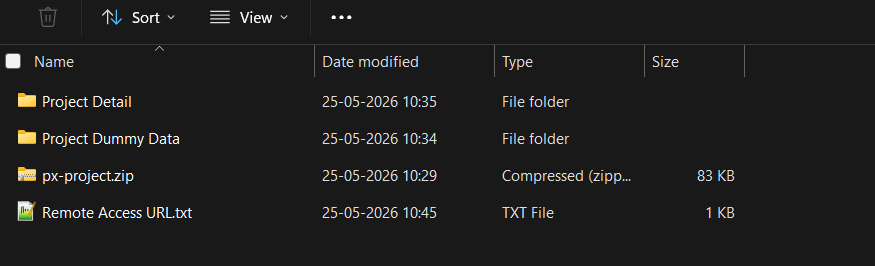
1. px-project.zip File #
Getting Started: Pre-Installation Guide #
Before using the PLP Projects Element Plugin for Breakdance, ensure the following:
Requirements
WordPress 6.0 or higher
Breakdance Builder Pro installed and activated
PLP Projects Element Plugin for Breakdance Builder Pro Version uploaded and activated
Installation Steps
Go to WordPress Dashboard → Plugins → Add New → Upload Plugin
Upload the px-project.zip Plugin ZIP file
Click Install Now
Activate the plugin
The Projects element will now appear inside Breakdance → Pixel Library Plus
2. Project Dummy Data #
How to import Project Data? #
Find "Project Dummy Data" Folder in Product Folder.
Now import "projects.xml" file
Go to Dashboard > Tools >Import -> WordPress -> Install Now
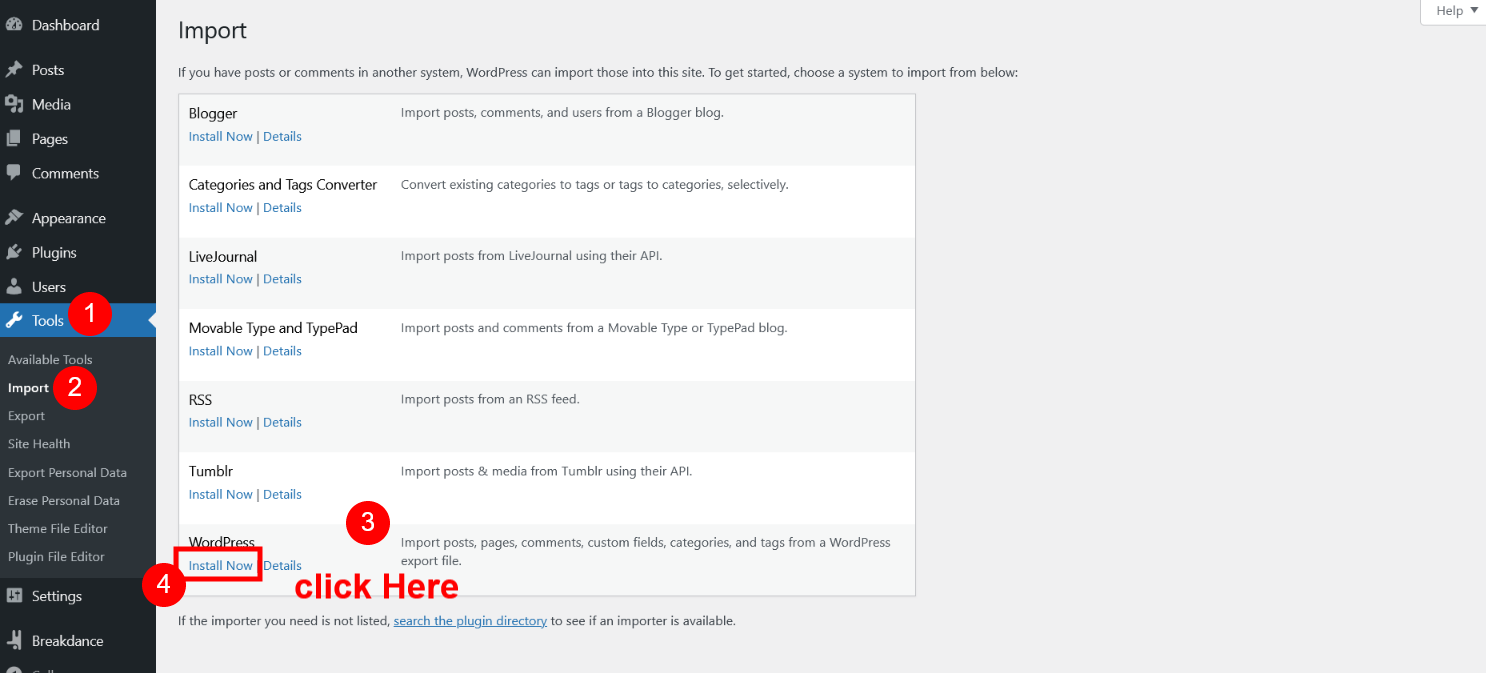
After Install Click on "Run Importer"
Now select "projects.xml" file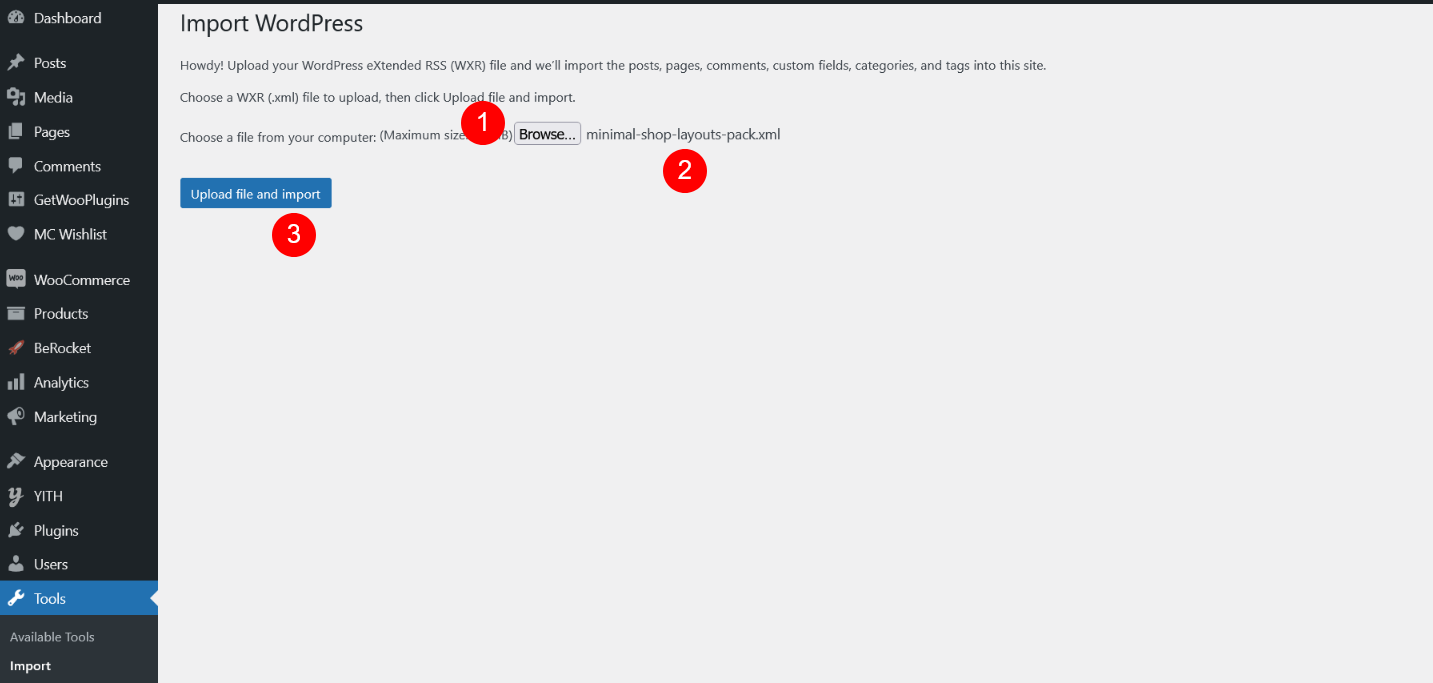
Click On "Submit" Button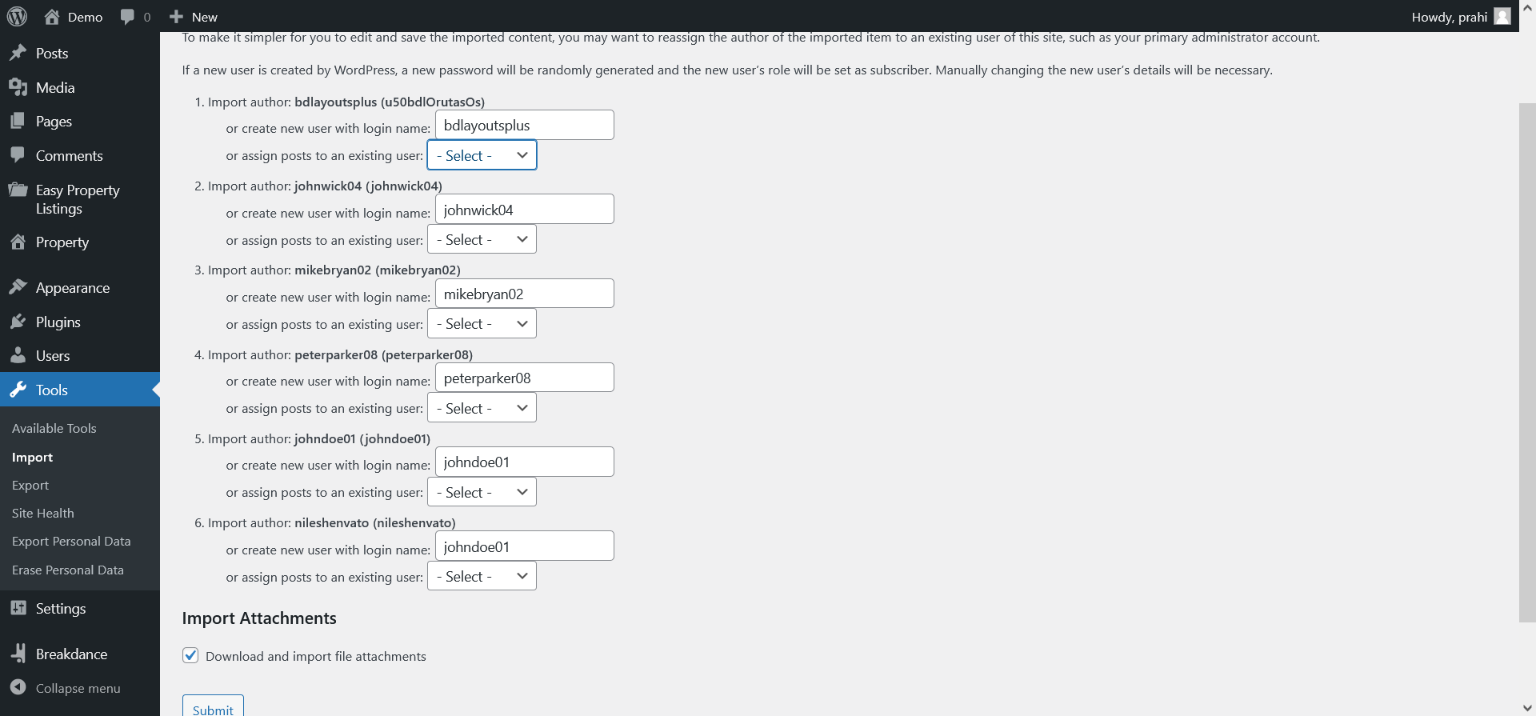
Data is Imported.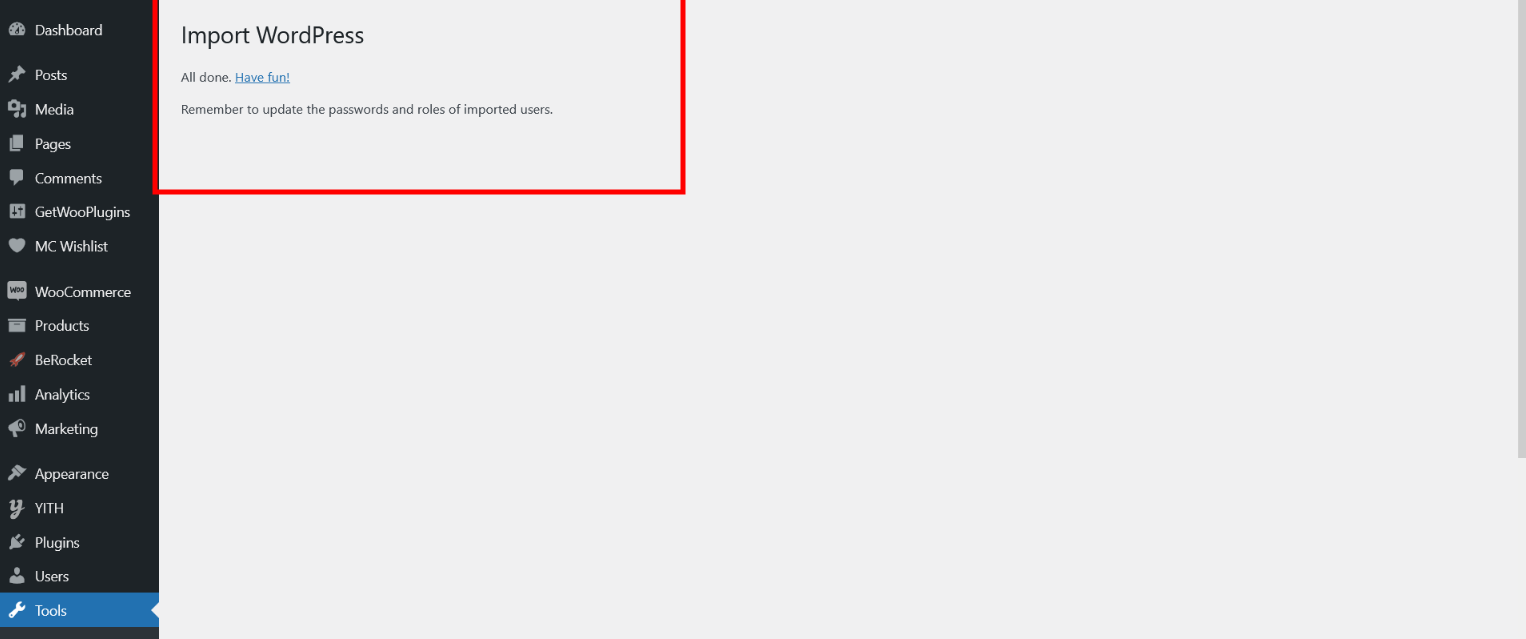
Now SEE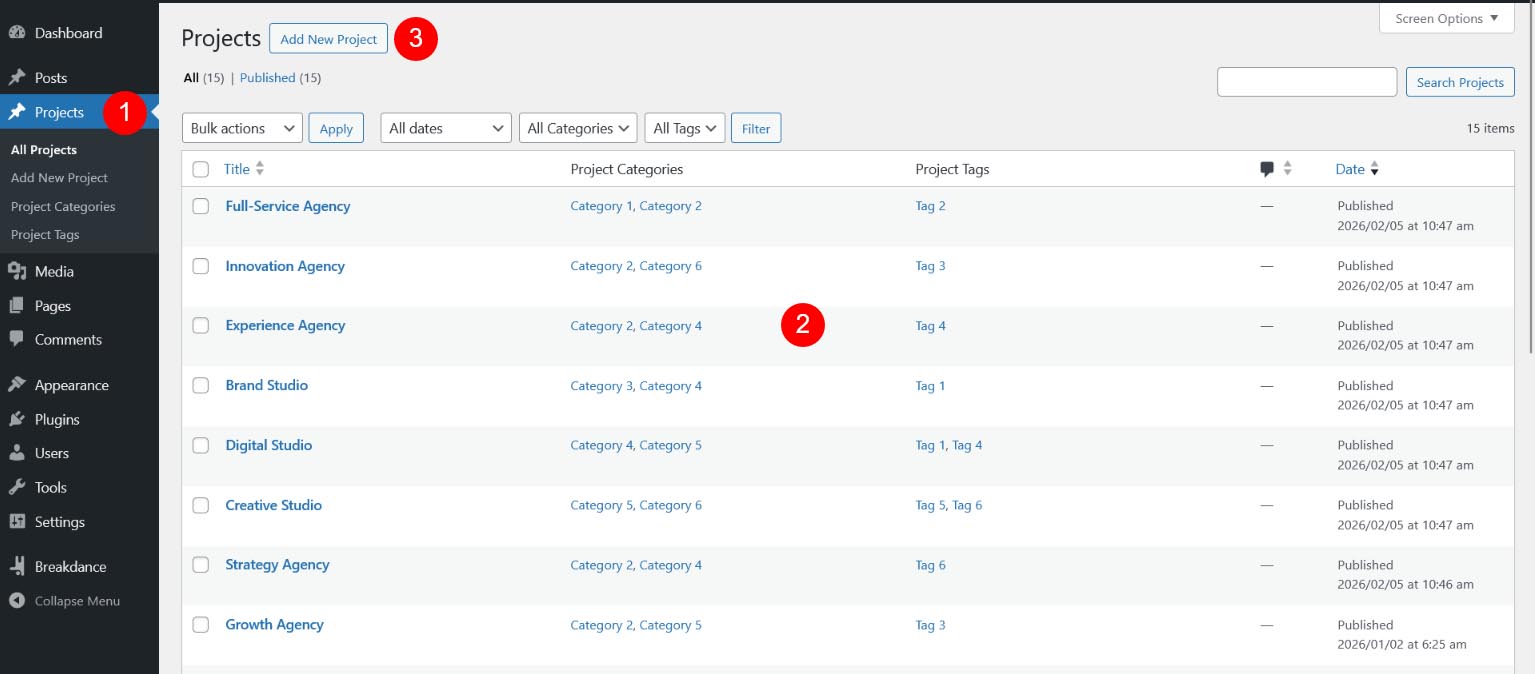
3. Project Detail Data #
How to import Project detail? #
Find "Project Detail" Folder in Product Folder.
Now import "project-detail.xml" file
Go to Dashboard > Tools >Import -> WordPress -> Install Now
After Install Click on "Run Importer"
Now select "project-detail.xml" file
Click On "Submit" Button
Breakdance Template Data is Imported.
Now SEE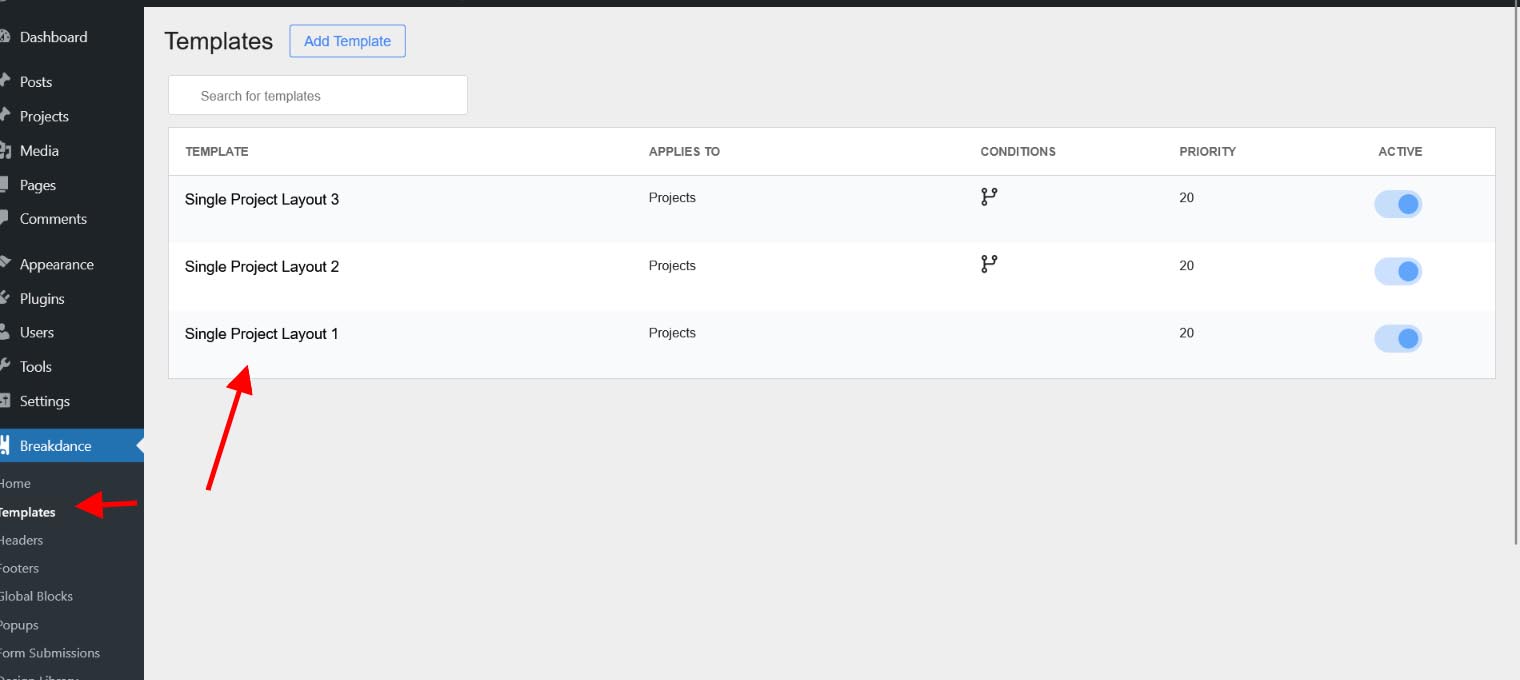
4.Project Element Demo Data #
Just Copy section from our demo site and paste into your website or used Remote Access URL.txt
5. Find Project Element #
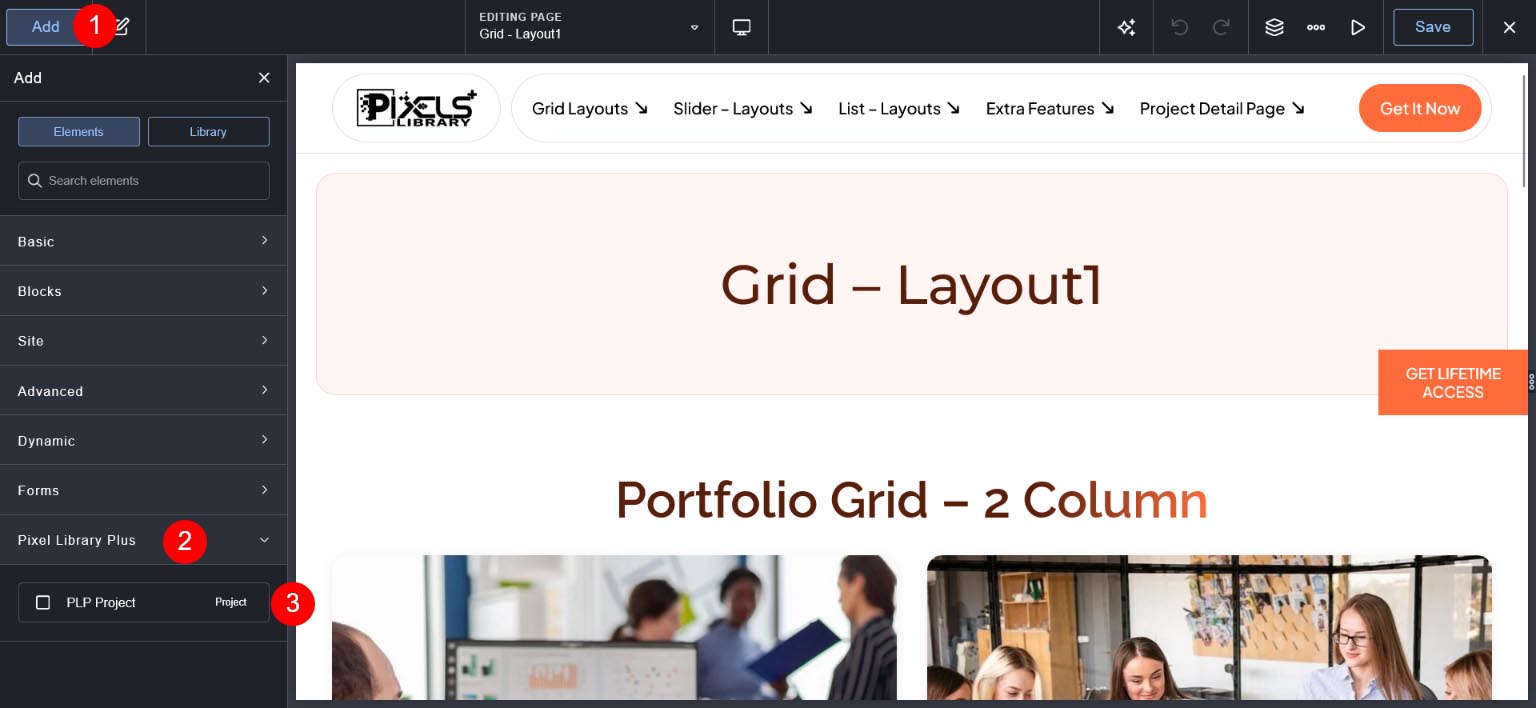
Go to Add Button then search project and you can see "PLP Project" Element.
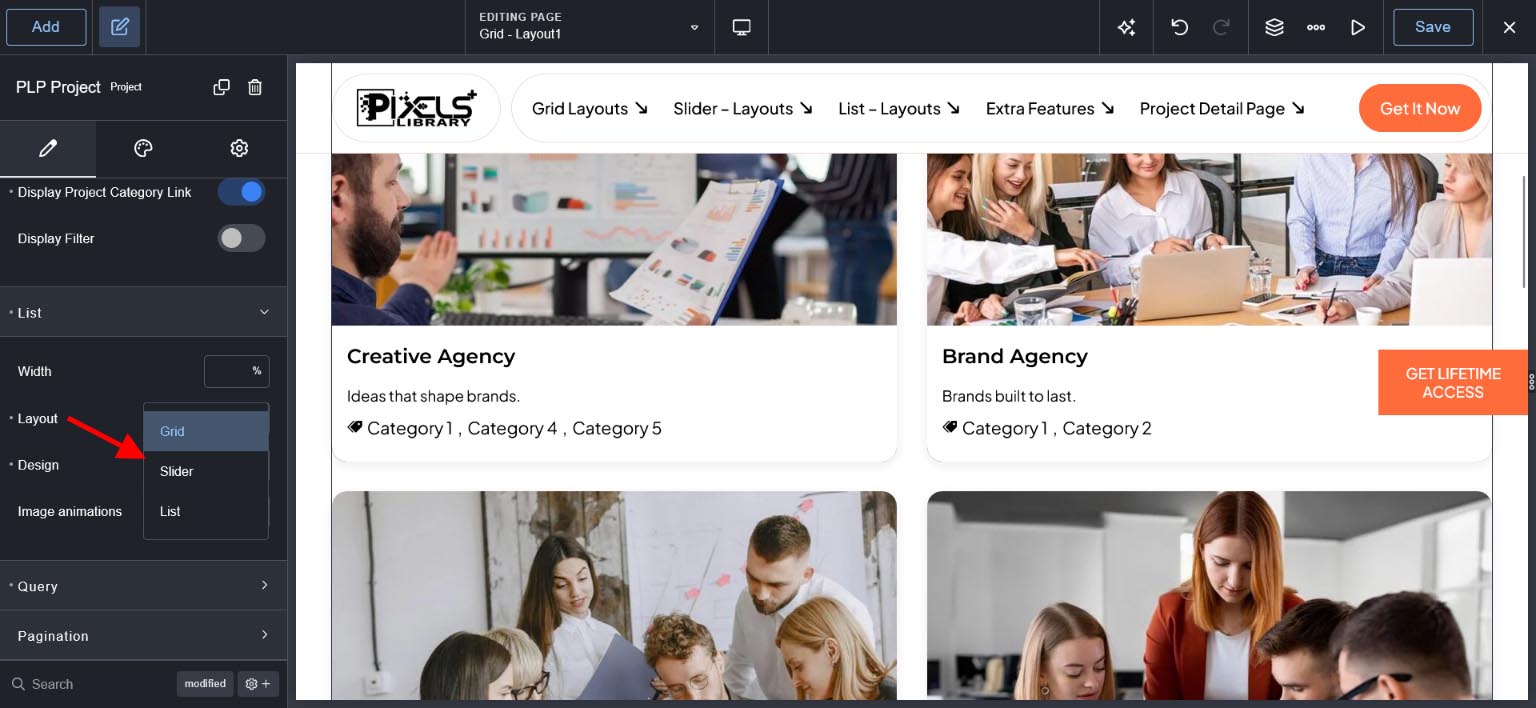
Find Grid , List and Slider Option #
See below image Go to "List" Toggle and check "Layout" Drop down
Select Grid
View All Documentation of Project Element