
Read below documentations #
How to Download Our Product? Downloaded Product Folder Structure
Most Important #
See Plugin Base Layout Folder Structure #
Go to "Breakdance Layouts Pack" Folder and once you click on that folder see below 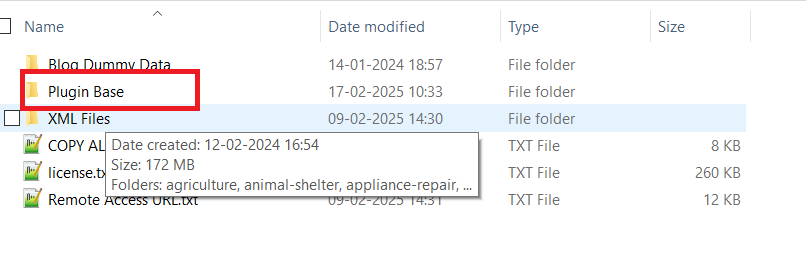 Go to "Plugin Base" Folder and once you click on that folder see below
 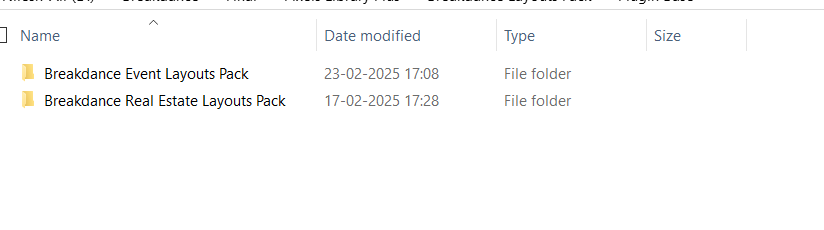 Go to "Breakdance Night Club Layouts Pack" Folder and once you click on that folder see below
 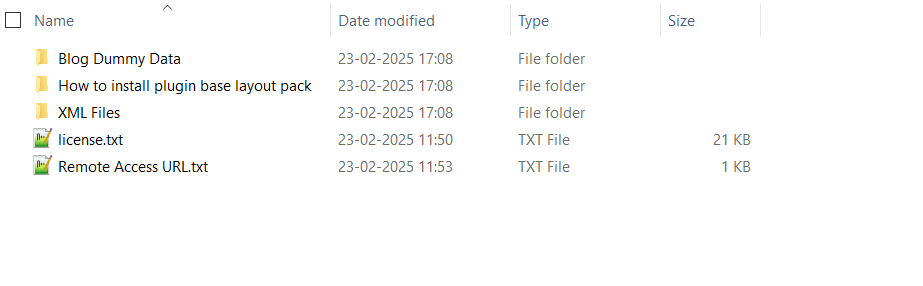 For example I want to import "Breakdance Night Club Layouts Pack"
Step 1 Go to "Breakdance Night Club Layouts Pack" Folder and see "XML Files" Folder Once you open XML Files Folder you can see "night-club" folder and open that folder and you can see below files 
Step 2
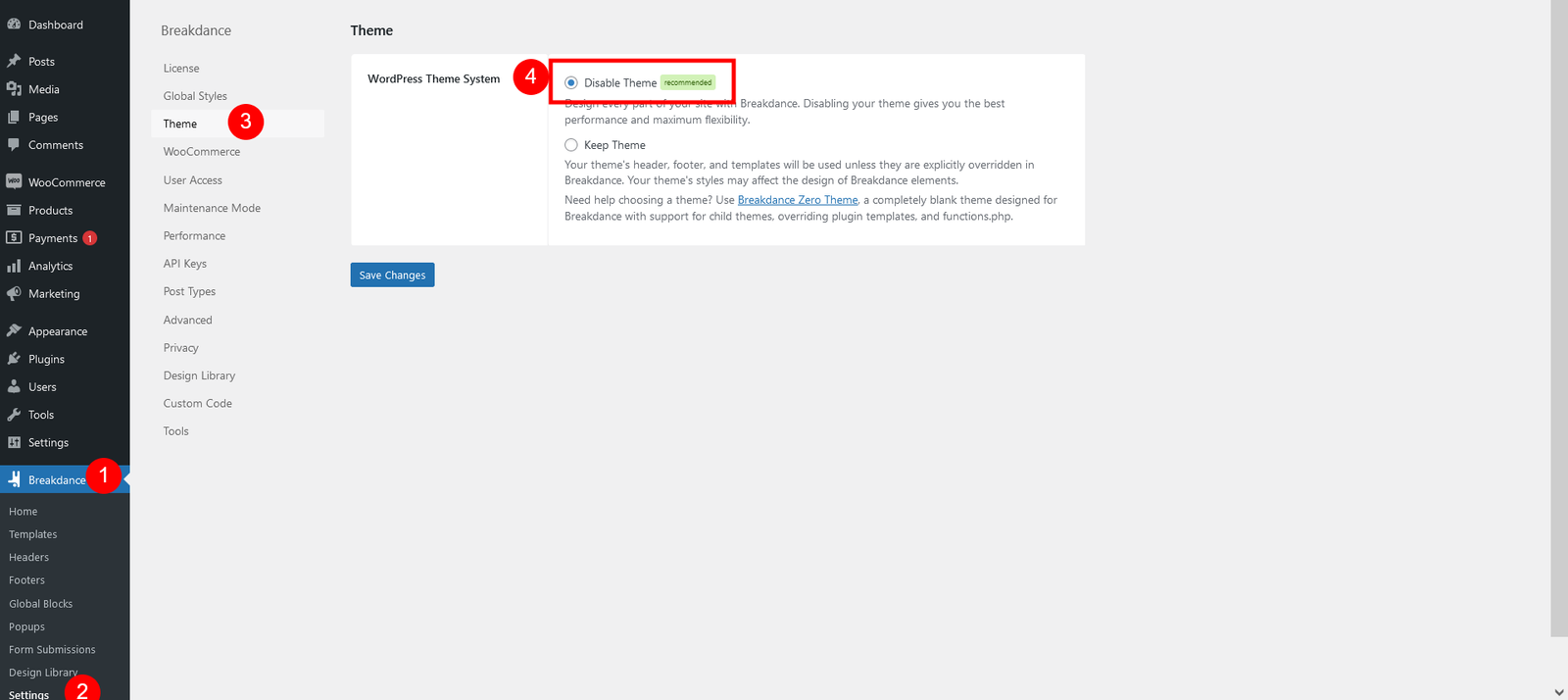
Go to Dashboard > Breakdance > Settings and click on "Theme"
So just select " Disable Theme" option to Disable Theme and click on "Save Changes" Button
Step 3
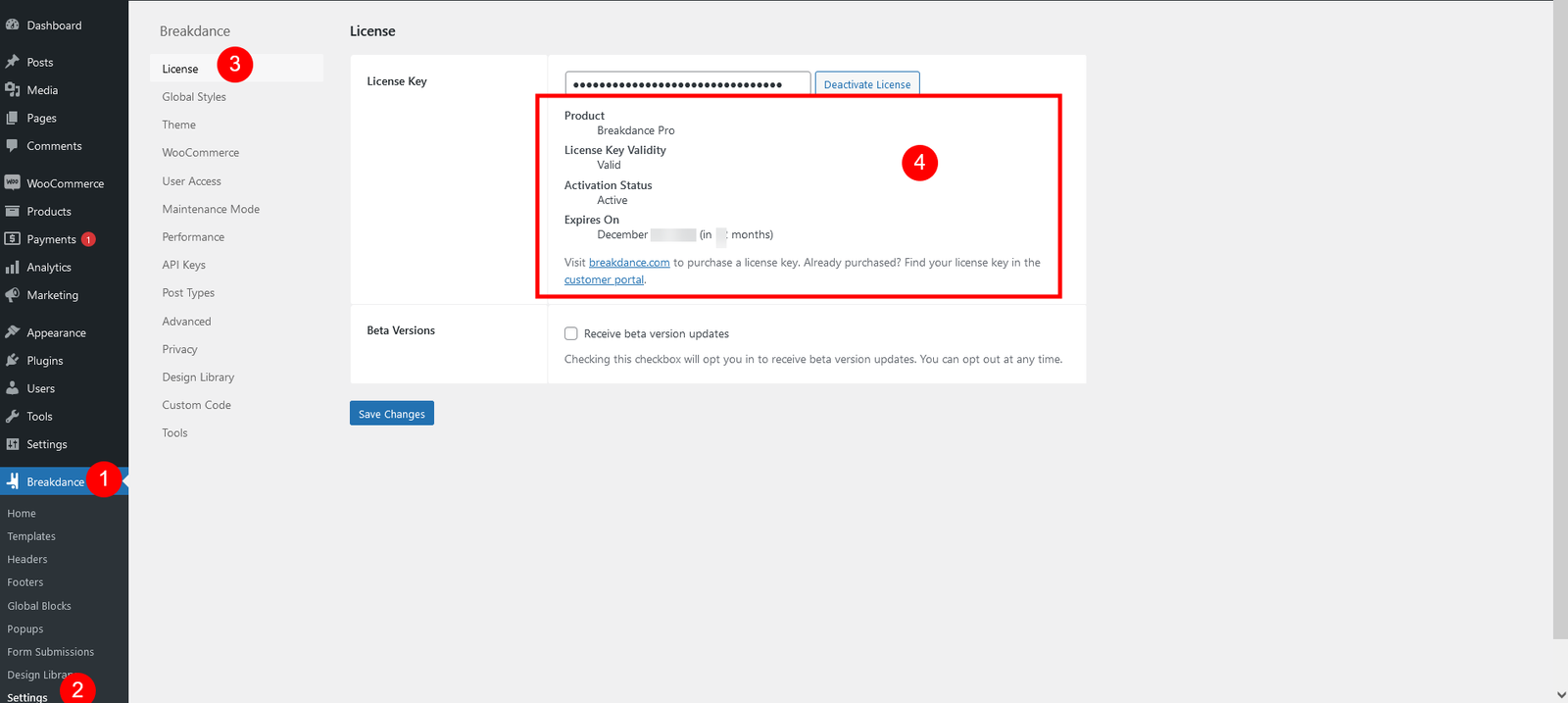
Go to Dashboard > Breakdance > Settings and click on "License"
So please add your License of Breakdance Purchase and click on "Save Changes" Button
Step 4
Most Important Step #
1. Install "The Events Calendar" Plugin and activate that plugin
Plugin Link : SEE https://wordpress.org/plugins/the-events-calendar/
2. Install and activate "Events Shortcodes For The Events Calendar" Plugin
Plugin Link : SEE https://wordpress.org/plugins/template-events-calendar/
3. Install and activate "Event Tickets" Plugin
Plugin Link : SEE https://wordpress.org/plugins/event-tickets/
4. Install and activate "The Events Calendar Countdown Addon" Plugin
Plugin Link : SEE https://wordpress.org/plugins/countdown-for-the-events-calendar/
5. Install and activate "The Events Calendar Search Addon" Plugin
Plugin Link : SEE https://wordpress.org/plugins/events-search-addon-for-the-events-calendar/
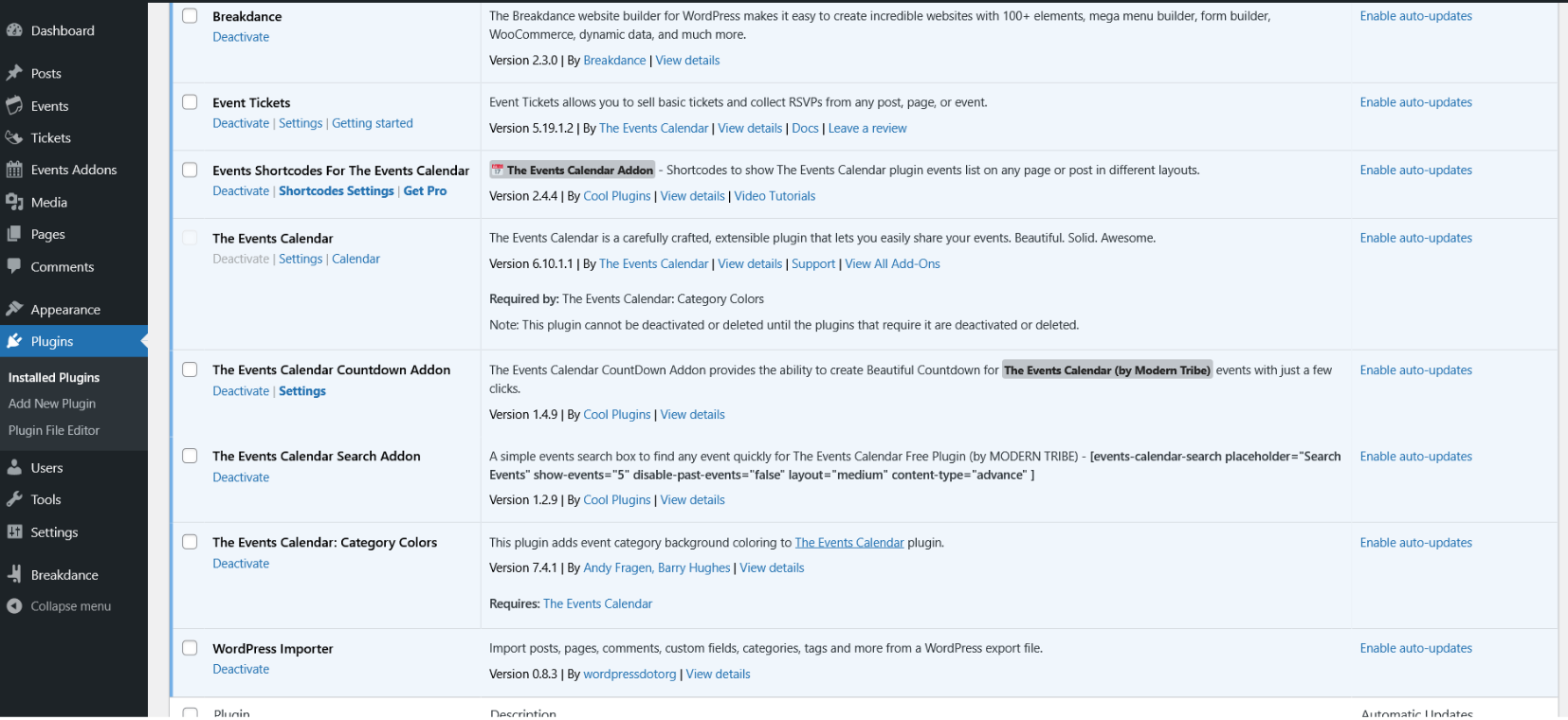
After Install Plugin Set below permalink 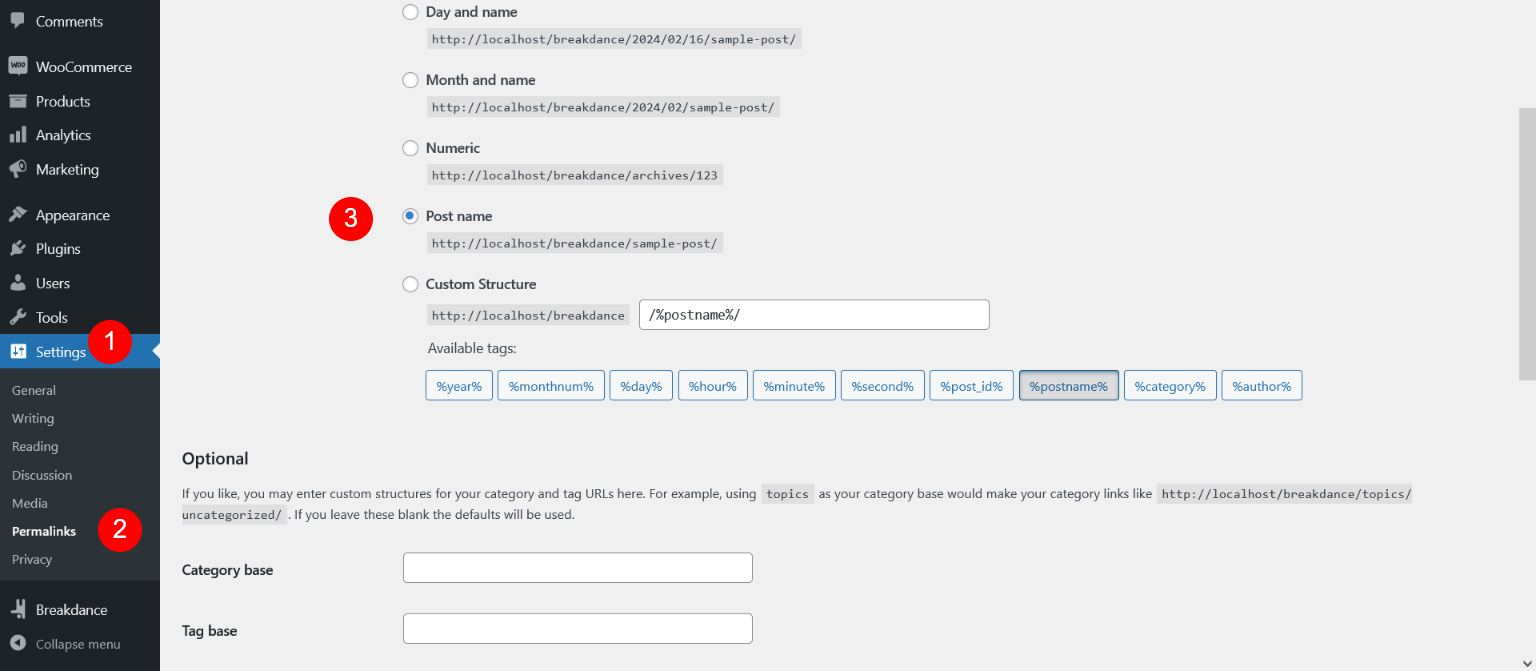
Go to Dashboard > Tools >Import -> WordPress -> Install Now 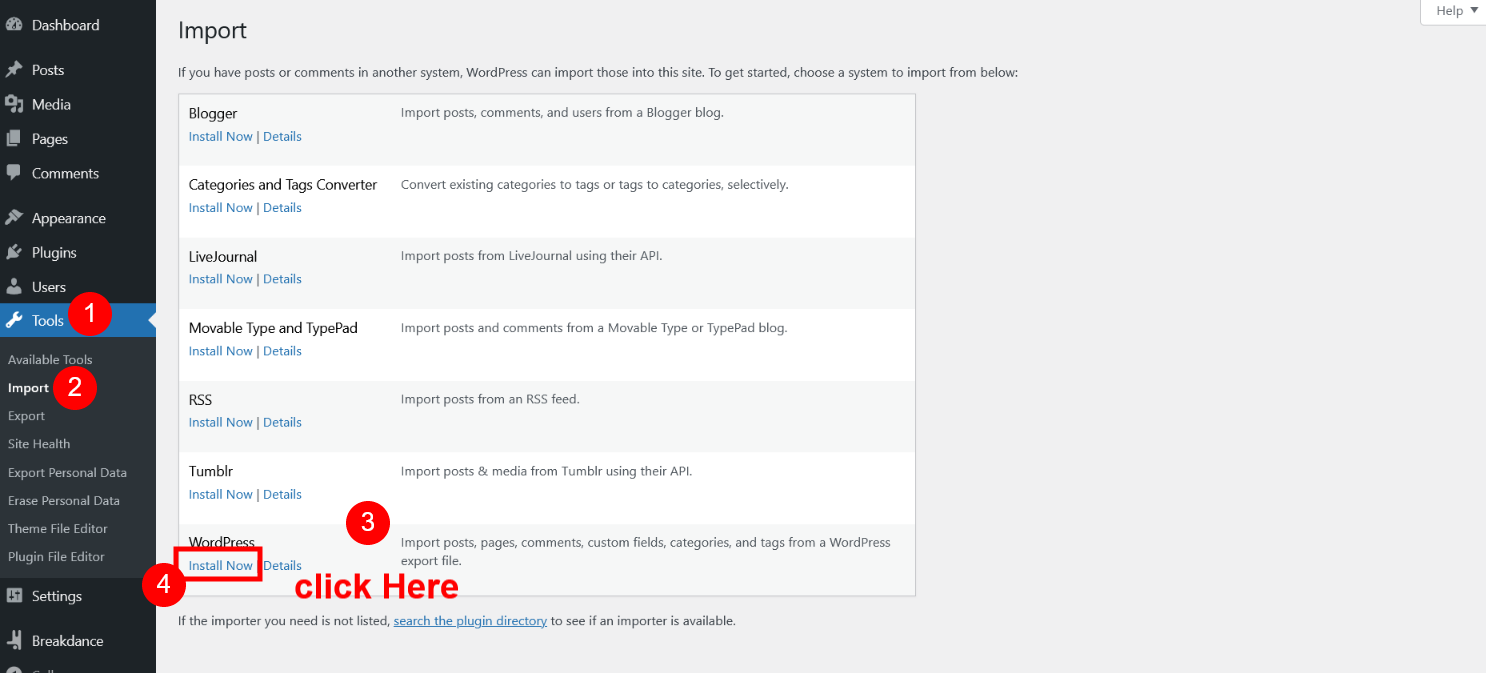 After Install Click on "Run Importer"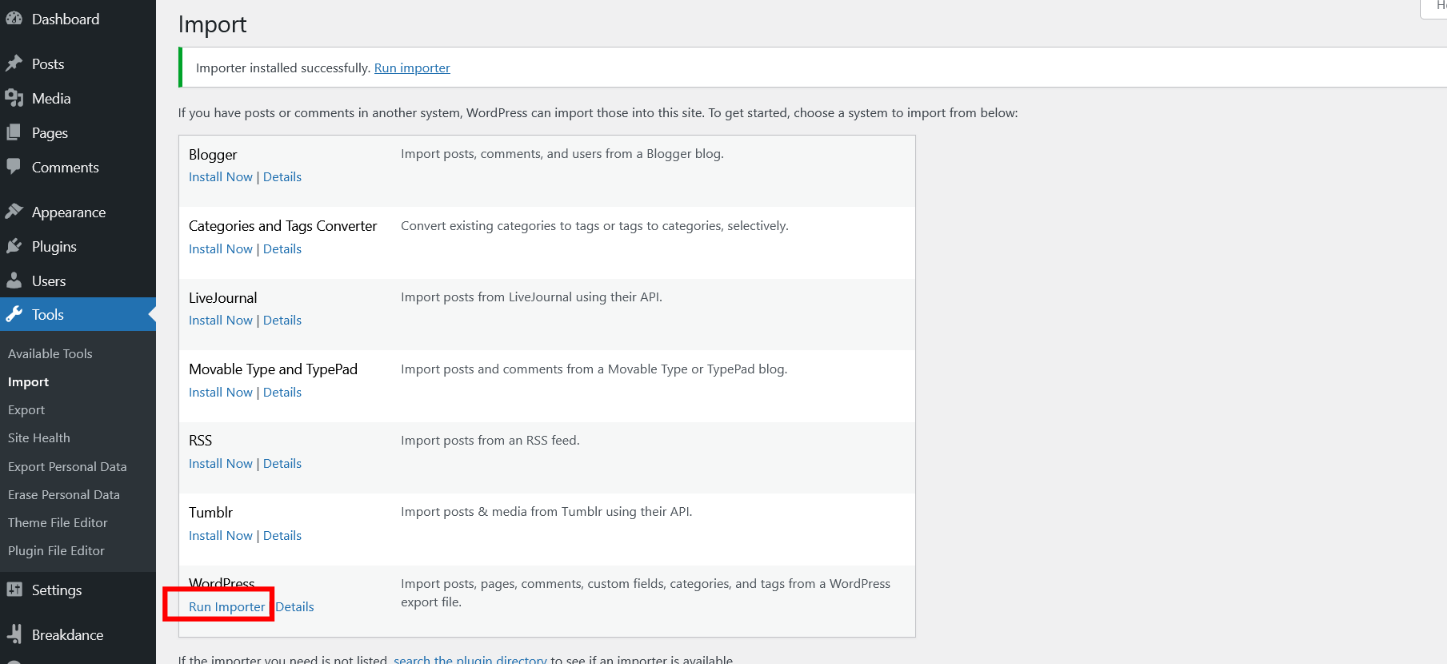
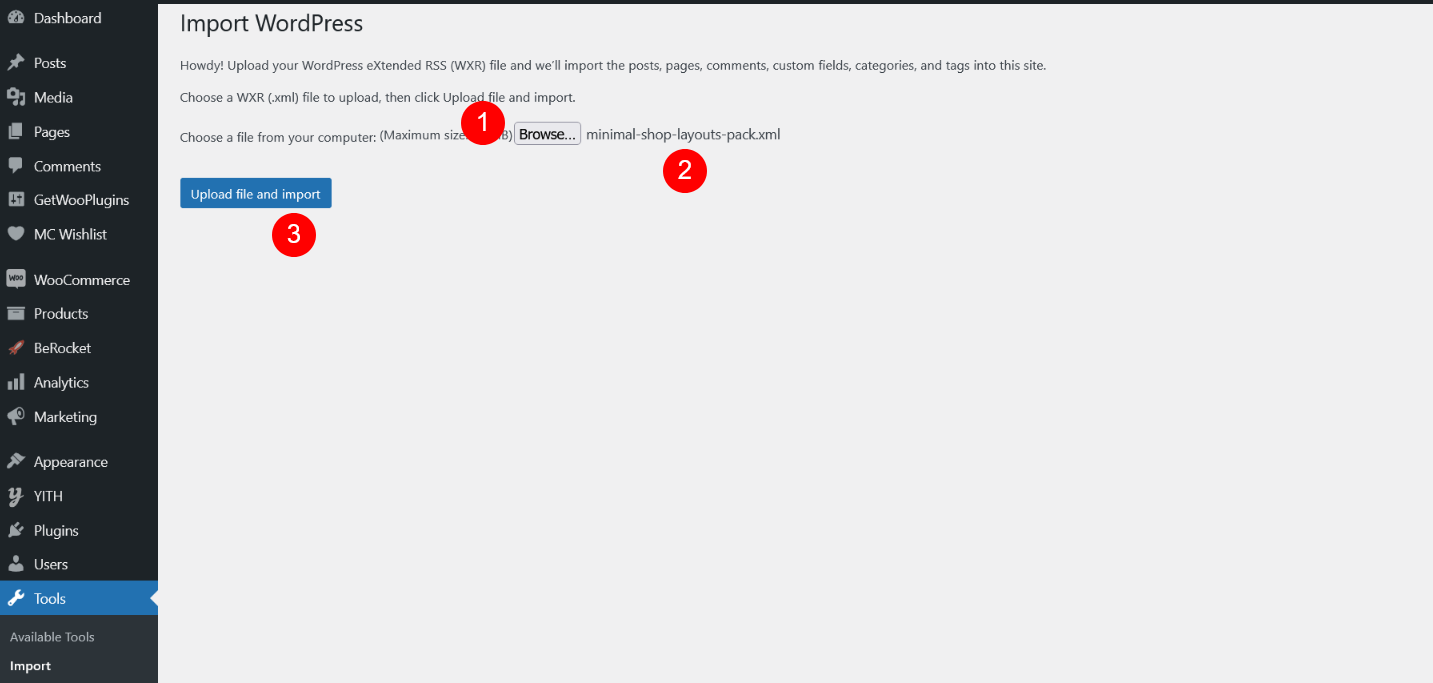
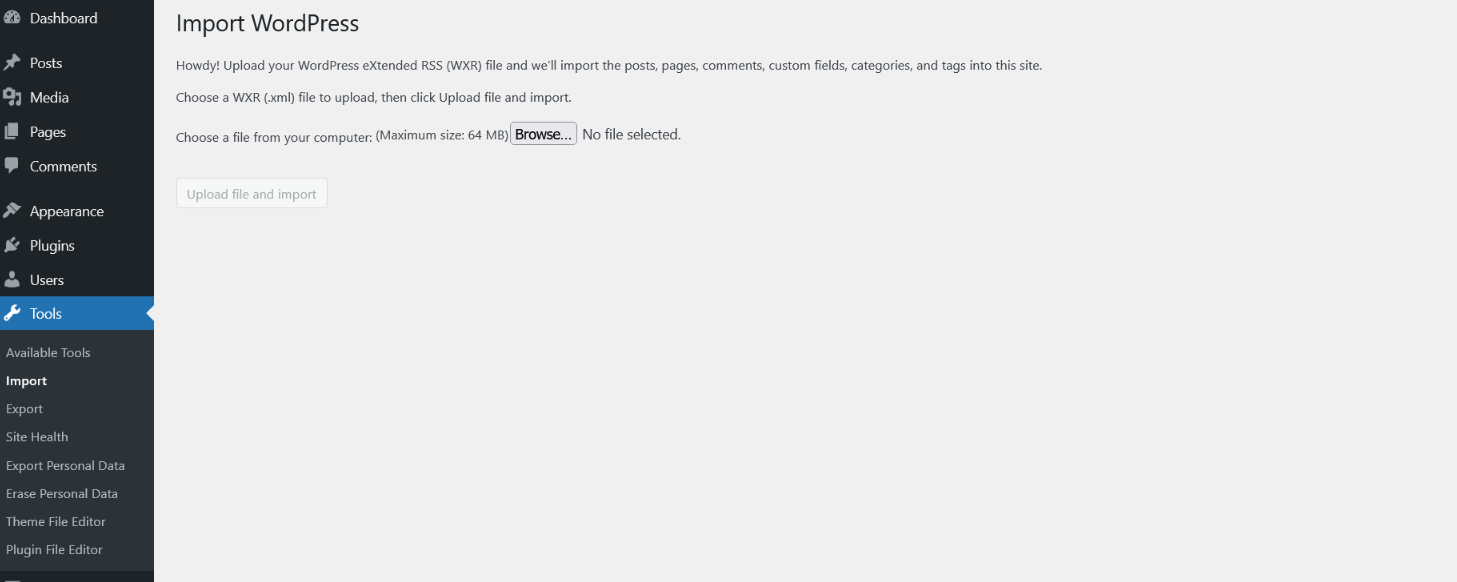 Now Select file "night-club.xml" [ Folder Path- Plugin Base - Breakdance Night Club Layouts Pack - XML Files - night-club ] and Click on Upload Button
  Click On "Submit" Button
 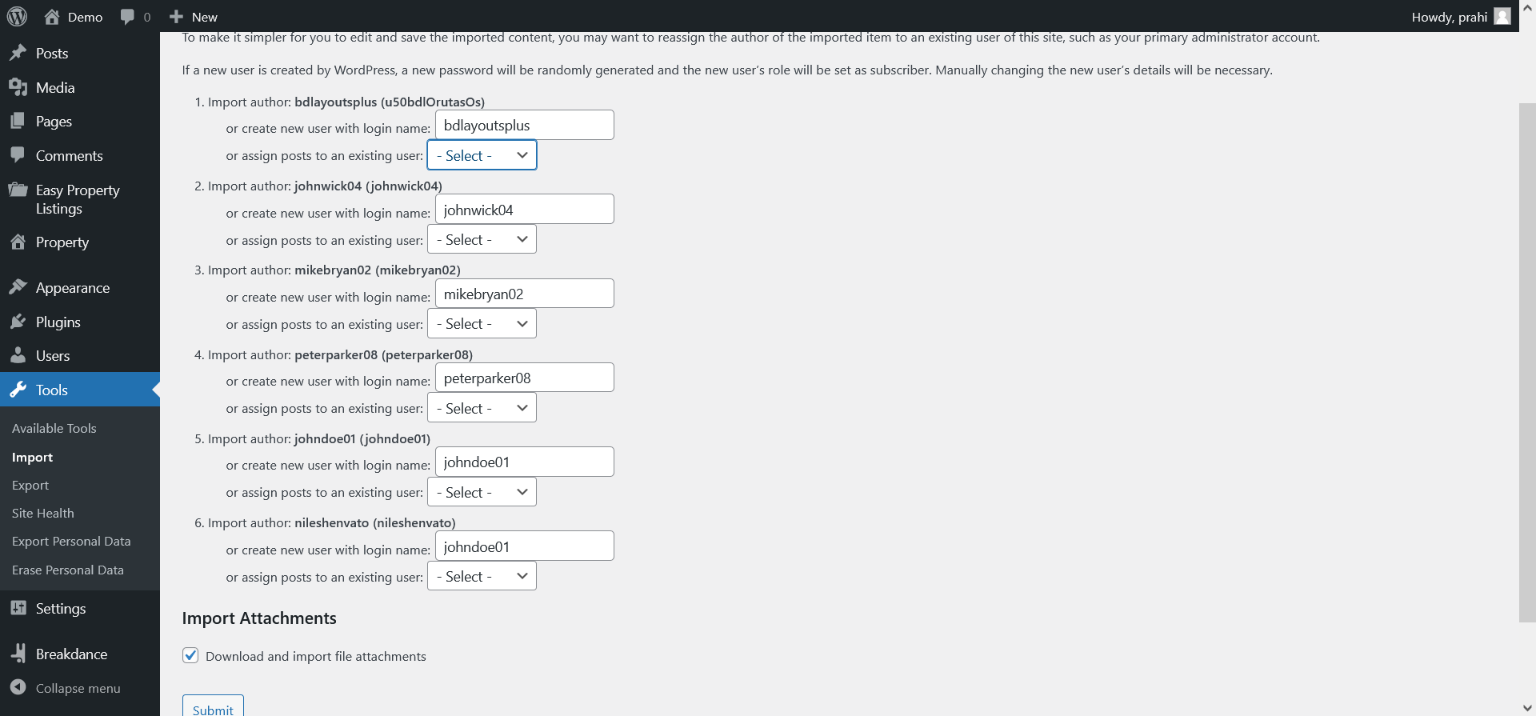 Now Data is Imported.
 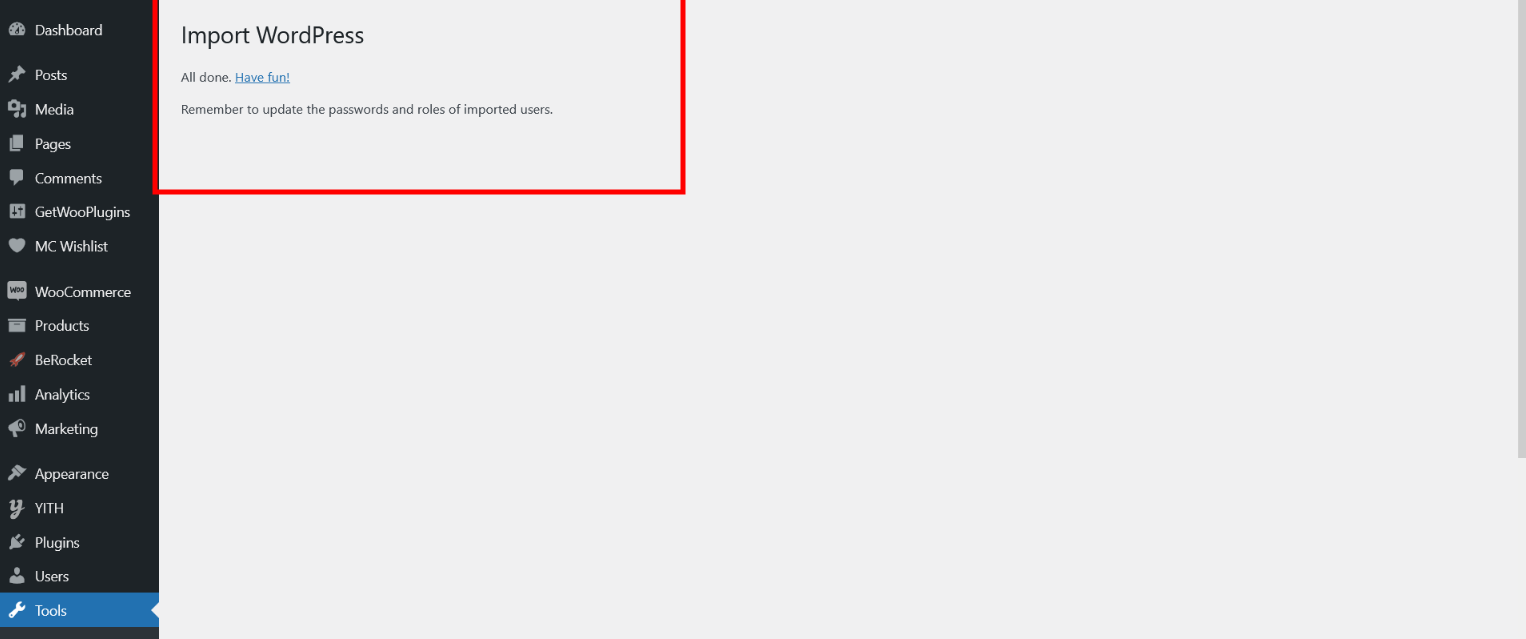 You can see all pages
Step 5
This is most important Steps to just import breakdance global settings using "night-club.json" file and import global settings json file see "Import Global JSON" Folder #
[ Folder Path - Plugin Base - Breakdance Night Club Layouts Pack - XML Files - night-club] Go to Breakdance -> Settings -> Tools -> Import Settings -> Select File (night-club.json) -> Click on "Upload Export JSON File" Button 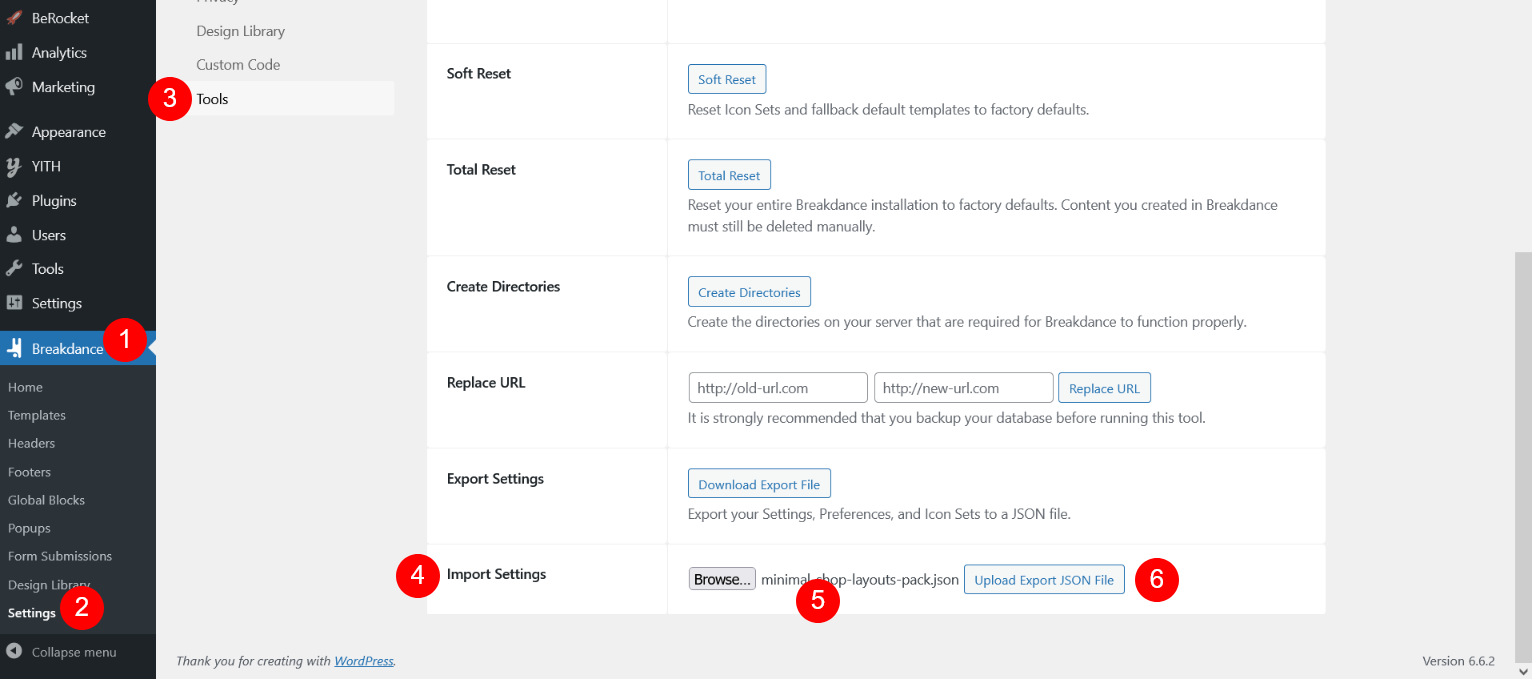 Another Most Important Step Please Don't Forget to Regenerate CSS Cache You can see json file is imported now click on "Regenerate CSS Cache" Button
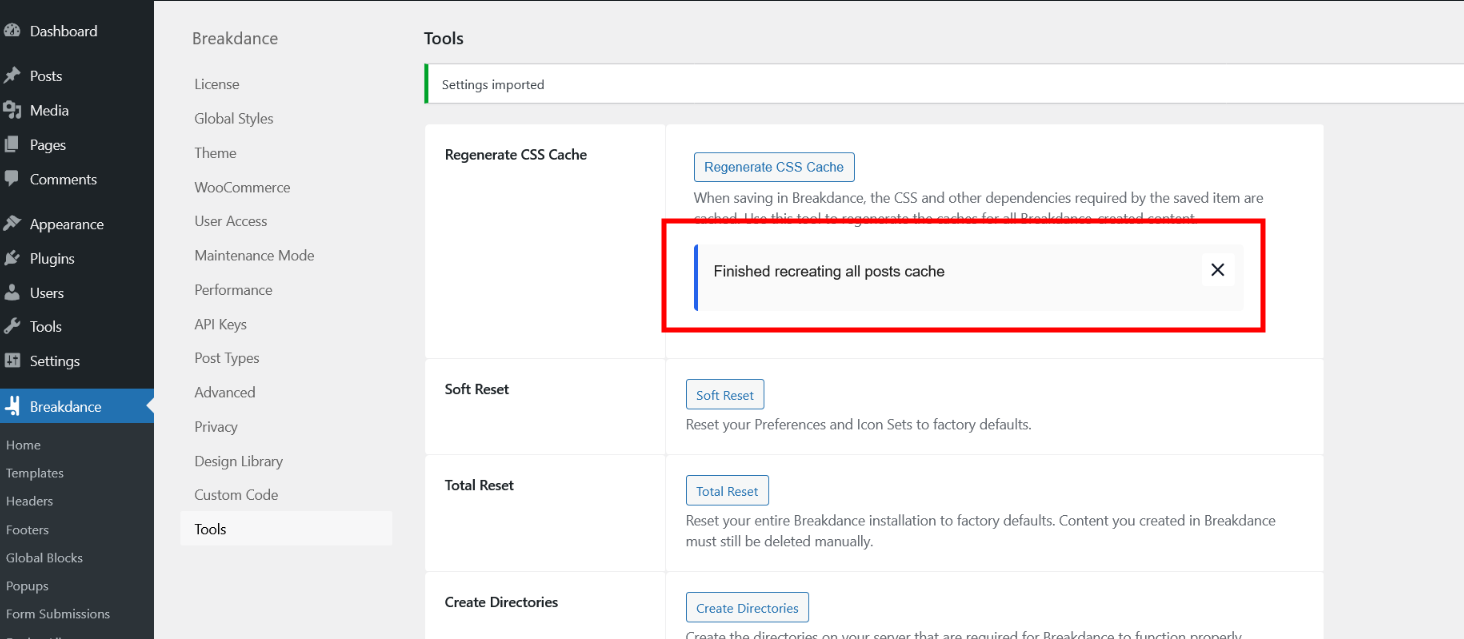
 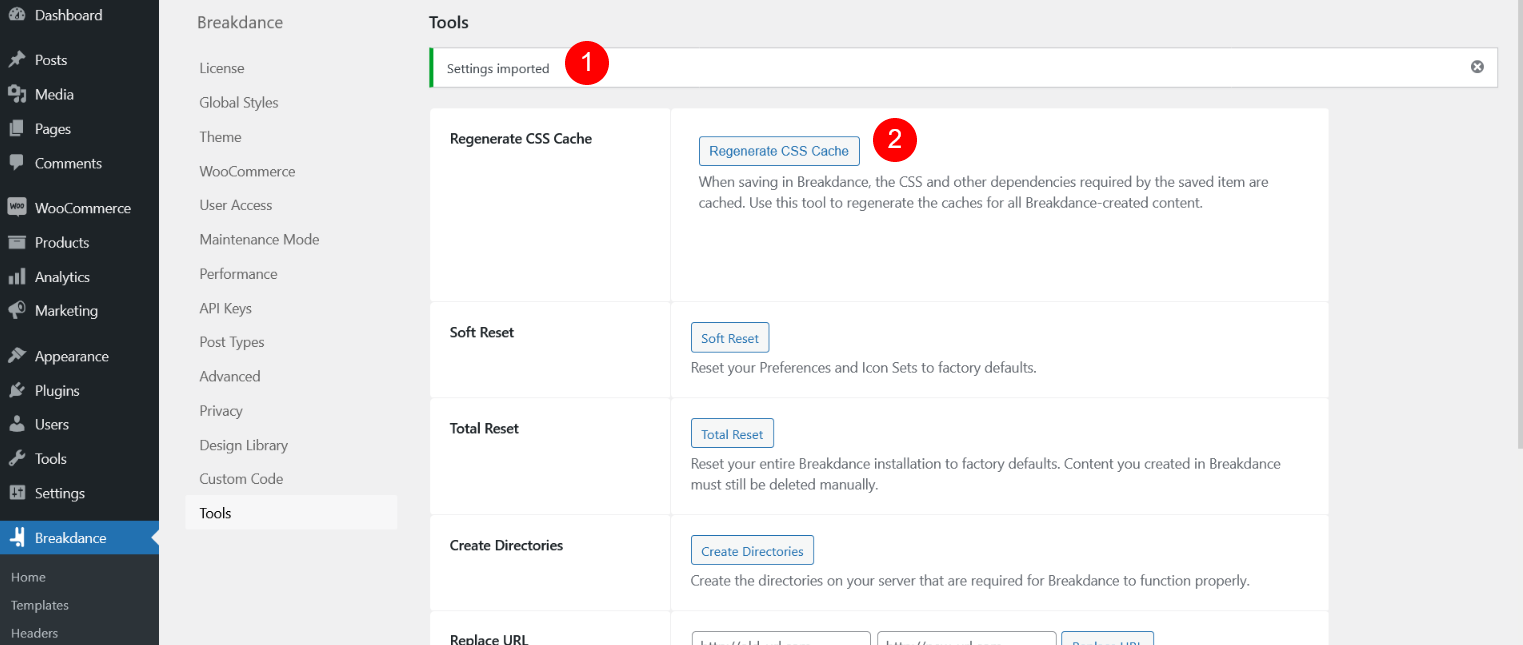 You can see cache is created
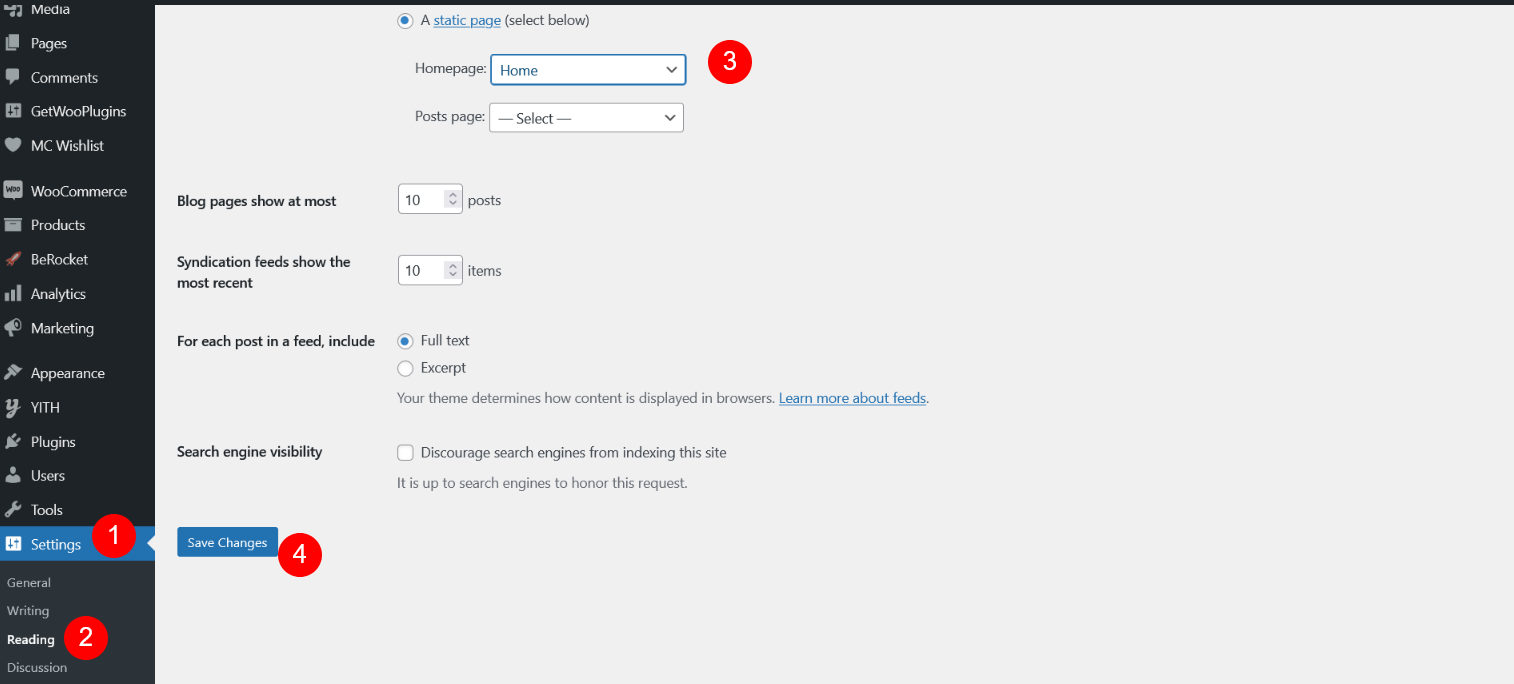
  Set Home Page
 Site is created successfully. Check on Browser view
FAQ #


If you have any query then please Contact Us